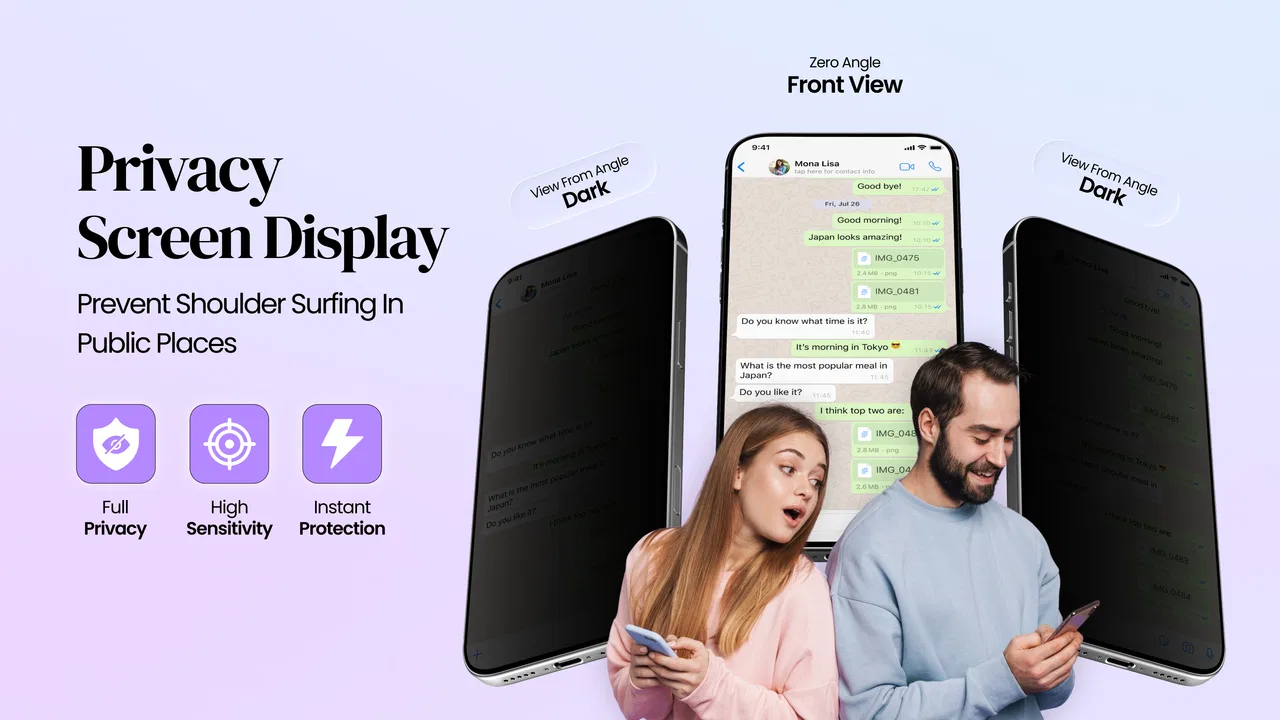
Screen Guard - Privacy Display
- 3.0
- Rating
- 1.00M
- Installs
- Free
- Price

 Analysis by App-foxy
I tried Screen Guard - Privacy Display as a practical personalization app rather than treating it like a decorative tool. Its purpose is straightforward: make the contents of your phone harder for nearby people to read. That sounds useful in places such as buses, waiting rooms, classrooms, cafés, and shared offices, but the real question is whether a display filter is convenient enough to leave active when you actually need it.
My first impression was that this is a focused utility. It is not trying to replace your launcher, redesign every part of Android, or turn privacy into a complicated security routine. The app from Tech Brain Apps concentrates on the visual experience of the screen, which makes it easy to understand but also means its protection has clear boundaries. It can help reduce casual shoulder-surfing; it cannot make sensitive information invisible in every situation.
How I used the privacy filter in everyday situations
The most sensible way to use the app is to begin with a simple baseline: activate the display filter before opening something private, then check whether text and controls remain comfortable to use. I found that this matters more than choosing the strongest-looking effect. A filter that hides the screen well but makes me squint is likely to be disabled after a few minutes, which defeats the habit.
You May Also Like

 Blood Strike: 2.5 Anniversary
Blood Strike’s Loadouts Turn Every Drop Into a Tactical Gamble
A close look at Blood Strike’s custom loadouts: how fast access to signature weapons reshapes its battle royale rhythm, rewards preparation, and narrows the gap between fights.

 Pandora - Music & Podcasts
Pandora’s Music Is Easy to Start, but Harder to Recover
Pandora’s strength is its low-effort path from a seed to a station. Its weak spot is how much confidence it asks you to place in connection, setup, and quiet recovery.

 8 Ball Pool
 Is Built on Rivalries, Rematches, and Routine
A close look at the rivalries, rematches, shared routines, and unanswered safety questions that turn a quick pool match into a persistent mobile community.

 Samsung Music
’s Quiet Strength Is Playing What You Already Own
Its reach comes less from spectacle than from dependable access to a personal library. That simplicity is both the app’s strongest retention engine and its ceiling.

 AccuWeather: Weather Radar
AccuWeather Review: A Quick, Clear Forecast for Everyday Decisions
For everyday plans, the best forecast is the one you can understand quickly. AccuWeather makes rain timing, radar, and local conditions easy to act on, with a few trade-offs.

 Hill Climb Racing
Why Hill Climb Racing Still Turns Crashes Into One More Run
A tiny car, a bumpy hill and one more upgrade: Hill Climb Racing keeps resurfacing because its simple chaos makes every near-miss feel personal.
More From Our News Desk



A realistic example is checking a message while sitting beside someone on public transport. Without a privacy layer, the person next to me may see the conversation simply by glancing at the phone. With the filter active, the screen becomes less readable from an angle, so a quick look is less revealing. I would still position the phone carefully, especially when entering passwords, reading financial details, or viewing a full conversation. The app is an extra visual barrier, not permission to ignore normal awareness.
I also found a useful distinction between casual privacy and deliberate secrecy. For casual privacy, a moderate display effect can be enough to discourage curious glances while preserving normal reading. For deliberate secrecy, I would combine the app with a shorter screen timeout, a locked device, and careful handling of notifications. The filter addresses what is visible while the phone is in use; it does not replace those other habits.
Because this is a free app, it is easy to test without committing money at the beginning. The listing places it in the personalization category, and that description fits: the main change is how the display appears rather than how the phone functions internally. It is available to users rated Everyone, which makes the concept approachable for a broad audience, including people who are not especially technical.
What the first setup should accomplish
When I set up a privacy display tool, I do not immediately choose the darkest or most aggressive option. I first open several kinds of content: a web page with small text, a messaging screen, a settings menu, and a page with icons or buttons. This quick test reveals whether the filter affects only readability or also makes touch targets difficult to identify.
That workflow is especially important on smaller phones. A display overlay can reduce contrast or add visual shading, and small text already demands more effort on a compact screen. On a larger display, the same setting may feel much more comfortable. My recommendation is to judge the app with the content you actually read, not with a blank home screen.
I would also test the filter in both bright and dim surroundings. A setting that looks acceptable indoors may feel too strong outdoors, while a subtle setting may be nearly useless in a dark room where the screen is highly visible. This is one of the less obvious trade-offs: privacy is not a single fixed level, because viewing angle, brightness, text size, and ambient light all change the result.
Settings and habits worth checking
The most valuable settings are the ones that let the filter fit your routine rather than forcing you to tolerate it constantly. If the app offers several visual choices, I would compare them using the same screen and keep the least intrusive option that still makes side viewing uncomfortable. The goal is not to make the display look dramatic; it is to reduce readable information outside your direct viewing angle.
I would pay particular attention to whether the filter changes the appearance of colors. This matters if you use your phone for maps, photos, shopping, or anything where color carries meaning. A privacy layer can be perfectly acceptable for text messages but irritating for image-heavy content. For that reason, I would treat the app as a situational tool and avoid assuming that one setting works for every task.
Another useful habit is to review notifications separately. A display filter may make an open app harder to read from the side, but a notification can still expose a message preview on the lock screen or at the top of the display. If privacy is the reason you installed this app, I would also adjust notification previews through the phone’s normal system settings. That combination is more effective than relying on the filter alone.
Brightness deserves attention too. Increasing brightness can make a filtered screen easier for you to read, but it may also make the phone more conspicuous to people around you. Lowering brightness can improve discretion in a dark environment, although it may force you to concentrate more. I prefer a balanced setting: enough brightness for comfortable reading, with the privacy effect doing the visual separation rather than brightness alone.
There is also a practical battery consideration, even without making claims about a particular technical implementation. Any display customization that remains active throughout the day should be evaluated by how often you truly need it. I would not leave a privacy layer running automatically for every activity if I spend most of the day at home. Activating it for travel, shared workspaces, or public waiting areas is a more sensible routine.
Faster patterns for repeat use
The difference between an app I keep and one I forget is often the speed of activation. If turning on the filter requires too many steps, I will eventually skip it when I am in a hurry. Experienced use therefore depends on creating a repeatable pattern: activate the protection before opening private content, use it during the exposed situation, and switch it off when it interferes with ordinary reading.
I would place the app where it is easy to reach and learn the quickest available route on the phone. Depending on the device and the app’s current behavior, that may involve an in-app control or a system shortcut. I would not assume that a shortcut exists without checking the actual interface, but the principle remains useful: the best privacy setting is one I can apply before a sensitive screen is visible.
A good routine is to activate the filter when boarding public transport rather than waiting until a private message arrives. That removes the awkward moment of changing settings while someone may already be looking. I would then disable it after leaving the crowded environment, because normal browsing is usually more pleasant without an extra visual layer.
Another efficient pattern is to use the filter selectively during specific tasks. Reading a work message, checking an account screen, or reviewing a personal note may justify it. Watching a video with friends or showing someone a photo usually does not. This task-based approach avoids the common mistake of treating privacy as an all-or-nothing choice.
I also recommend checking the result after rotating the phone. Portrait and landscape viewing can change how much of the display is exposed to people nearby. Someone sitting beside you may see less of a portrait screen but more of a wide landscape screen, particularly when you are watching media or viewing a document. The app can reduce casual visibility, but your physical position and orientation still matter.
Where the protection reaches its limits
The central limitation is simple: a visual filter does not encrypt the screen or prevent someone directly in front of you from reading it. If a person is close to the phone and looking over your shoulder, the content may remain visible. The effect is strongest against off-angle viewing, not against every possible observer.
It also cannot protect information that appears elsewhere. A notification preview, a connected display, a screenshot, or a photo taken by another person falls outside the basic purpose of a screen filter. I would therefore avoid presenting the app as a complete privacy solution. It is best understood as one layer in a broader set of habits.
There is a usability cost as well. Filtering the display can reduce clarity, make colors less natural, or make small interface elements harder to distinguish. People who frequently edit photos, compare color samples, read tiny documents, or play visually demanding games may find the effect more annoying than helpful. For those users, a physical privacy screen protector or a device with strong built-in privacy controls may be a better long-term choice.
Another trade-off concerns accessibility. If you already use enlarged text, high contrast, screen magnification, or other visual adjustments, adding a display filter may make the screen less comfortable. I would test the combination carefully and keep the phone’s accessibility settings as the priority. Privacy is not useful if it makes the device difficult to operate.
It is also worth remembering that a privacy filter can create false confidence. I would still lock the phone when setting it down, avoid entering sensitive information in a crowded place, and check who is nearby before opening confidential material. The app reduces the chance of an accidental glance; it does not change the basic responsibility of handling private data carefully.
Value, compatibility, and the paid layer
The app is free to install, which makes it a low-risk option for anyone curious about this type of display protection. It supports Android from version eight onward, so compatibility covers many devices while still depending on the phone’s own display behavior and system interface. I would test it on the exact device I plan to use, particularly if the phone has unusual screen scaling or accessibility settings.
The current version is 3.0.8, and the app has passed the one-million-install mark. Its average rating is 3.2 from around eleven thousand ratings, with a little over two hundred written reviews. I read that overall picture as a sign to keep expectations realistic: the concept is appealing, but the experience may vary by device, personal tolerance, and how effectively the filter can be integrated into daily use.
There are in-app purchases ranging from $3.49 to $49.99 per item. I would not pay immediately. The free experience should be the first test, because the important question is whether the display effect is comfortable and useful on your phone. If a paid option unlocks a setting you genuinely need, it may be worth considering, but the price range makes it especially important to understand what each purchase changes before confirming anything.
Compared with a physical privacy screen protector, this app is more flexible. Software can be used only when needed and does not require changing the phone’s hardware. A physical protector, however, may provide a more consistent viewing-angle barrier and does not depend on remembering to activate an app. Compared with built-in phone privacy features, Screen Guard is more accessible to people whose device lacks a suitable option, but system-level controls may feel smoother because they are integrated into the operating system.
Compared with simply lowering brightness or holding the phone closer, the app offers a more deliberate privacy layer. Those ordinary tricks remain useful, but they do not address side viewing as directly. On the other hand, lowering brightness may preserve color accuracy better, and changing your position costs nothing. I see this app as most valuable when you want a repeatable visual barrier without permanently attaching a protector.
Who will benefit most from this app
I would recommend it to commuters, students, office workers, and anyone who regularly checks personal information in shared spaces. It is particularly suitable for people who want occasional protection rather than a permanent dark privacy protector. It can also help parents or families who share rooms and do not want every notification or message immediately readable from across the space.
I would be more cautious about recommending it to photographers, designers, frequent video viewers, and users who depend on precise color or maximum screen clarity. People with visual accessibility needs should also test it before building it into their routine. If you need protection against a determined observer sitting directly behind you, this app alone is not the right answer.
My best practical advice is to create a small personal test. Open the kinds of screens you want to protect, view them straight on, then ask whether the text remains comfortable. Move the phone slightly to the side and see whether the information becomes meaningfully harder to read. Repeat this in the places where you normally need privacy. That simple check tells you more than the app’s concept alone.
My final assessment after building a routine
The strongest reason to use Screen Guard is its balance between flexibility and simplicity. I can treat it as a situational privacy switch instead of accepting a permanent change to every screen. Once activation becomes part of my public-space routine, it adds a useful layer against casual glances without demanding a complete change in how I use the phone.
Its weaknesses are just as important. The visual effect may reduce comfort, it cannot stop direct viewing, and it does not cover lock-screen previews or broader phone-security habits. The paid options also deserve careful consideration because the listed purchase range is wide. I would first confirm that the basic experience fits my device and my eyes before spending anything.
In the end, Screen Guard - Privacy Display works best for someone who understands the difference between discouraging a glance and guaranteeing secrecy. I would keep it in my toolkit for travel, shared work areas, and quick private checks, while combining it with sensible notification, locking, and positioning habits. If you want an adjustable software layer and accept a little visual compromise, it is worth trying. If you need maximum clarity or stronger protection from direct observers, a dedicated physical or built-in alternative will likely serve you better.
FAQs for Screen Guard - Privacy Display
01What is Screen Guard - Privacy Display and how does it protect my screen?
Screen Guard - Privacy Display is designed to make the information on your phone harder for people nearby to read. It typically applies a privacy filter, overlay, or visual effect that narrows the apparent viewing angle or obscures selected areas of the display. This can be useful on public transport, in cafés, offices, or other crowded places, although it cannot provide the same physical protection as a real privacy screen protector.
02Does Screen Guard - Privacy Display work on every Android or iPhone?
Compatibility depends on the version of the app, your operating system, and the permissions required for its display features. Apps that place a filter over other applications may work differently across Android devices because manufacturers manage overlays and screen settings in different ways. iPhone support may also be limited if the feature requires system-level access, so check the store listing and device requirements before downloading.
03Will the privacy filter affect screen brightness, colors, or battery life?
Yes, using a privacy overlay or display filter can change how your screen looks. Text may appear darker, colors may be less accurate, and you might need to increase brightness for comfortable reading. If the app keeps an overlay active continuously, it may also use additional battery, particularly on phones with bright displays. Disable the filter when it is not needed to improve visibility and reduce power consumption.
04What permissions does Screen Guard - Privacy Display require, and is it safe to use?
The permissions depend on the app’s implementation, but display privacy tools commonly request permission to appear over other apps or modify certain visual settings. Review every permission carefully before enabling the feature, and avoid granting access that seems unrelated to its purpose. Download the application from an official store, check the developer information and privacy policy, and remove overlay access if you no longer use the app.
05Can Screen Guard - Privacy Display completely prevent others from seeing my information?
No privacy filter app can guarantee complete confidentiality. Someone standing close to you may still see the screen, especially if the display is bright or viewed from a favorable angle. The app should be treated as an extra layer of privacy rather than a replacement for cautious behavior. For banking, passwords, private messages, and sensitive documents, also use screen locks, avoid public viewing, and consider a physical privacy screen protector.
Pros
- Quickly hides sensitive content from side-angle viewers.
- Offers adjustable privacy levels for different viewing situations.
- Useful in public places such as buses
- cafés
- and offices.
- Simple interface with minimal setup required.
- Can help reduce accidental exposure of messages and passwords.
Cons
- Privacy filters may make the screen look darker or less clear.
- Side-angle protection can vary between devices and screen sizes.
- Some features may require overlay or accessibility permissions.
- The filter may affect color accuracy when viewing photos or videos.
- It can slightly reduce readability and increase eye strain for some users.

Screen Guard - Privacy Display
Gallery